Tick in fifteen minutes
Edit a running App and watch each change land: a tab, a different presentation, a new action and a look.
Goal. By the end you have changed Tick (tick/app.ts),
a whole to-do App in one file, four times, and checked it the way CI would.
You need Node 24 or newer. Tick ships in the npm package with its seed; it is SQLite, so there is nothing else to install.
1. Start Tick
Section titled “1. Start Tick”mkdir tick-try && cd tick-try && npm init -y && npm pkg set type=modulenpm install tablewalk typescriptcp -r node_modules/tablewalk/examples/apps/tick ./ticknode node_modules/tablewalk/examples/databases/tick/seed.mjs ./tick.dbnpx tablewalk --config ./tick.db.json --app tick --openTick is copied out of node_modules because Node does not run TypeScript from
there. The seed writes a SQLite database and ./tick.db.json, a writable
connection named tick. It refuses to overwrite either, so pick a new path to
start over.
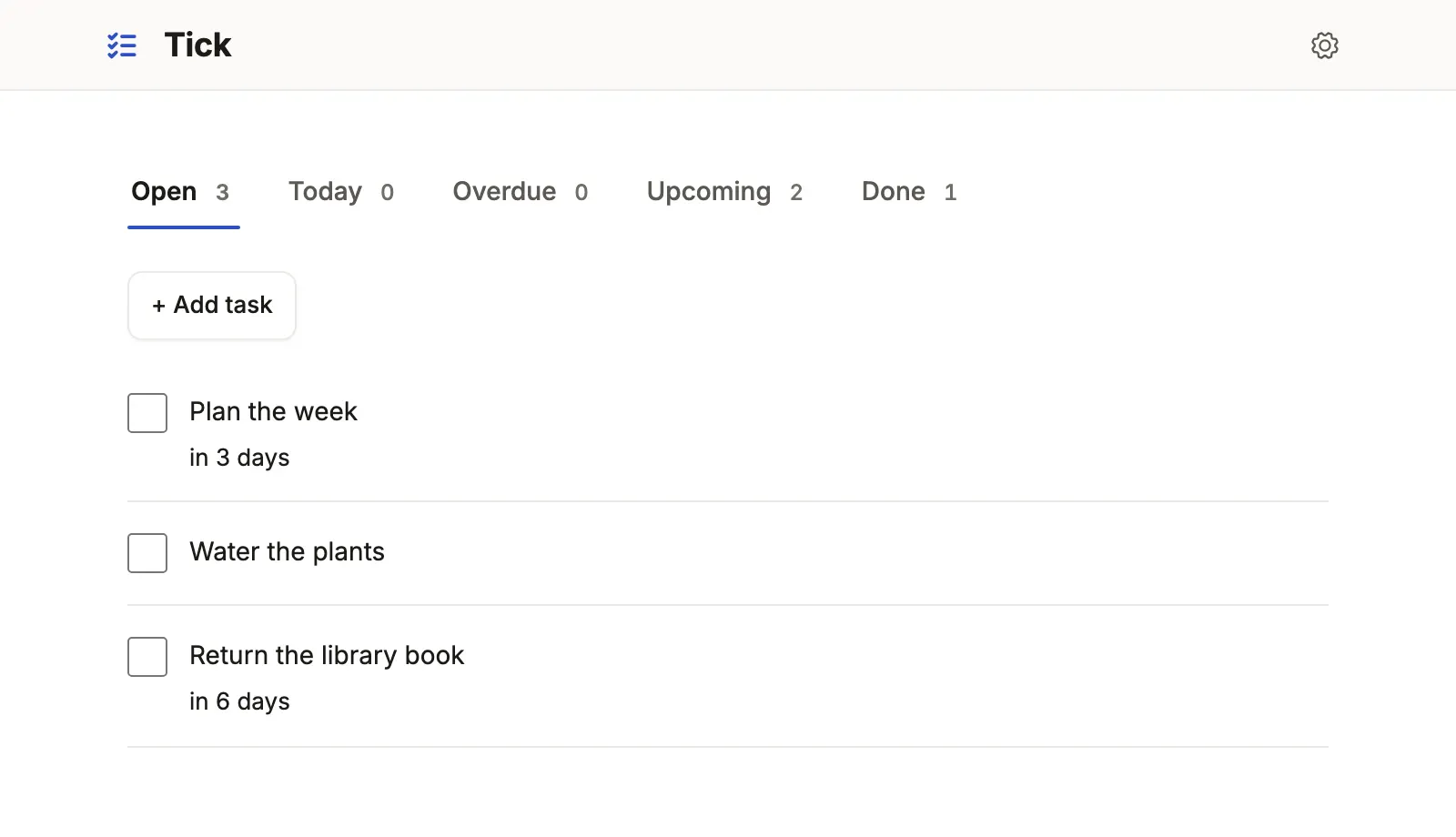
You should now see the picture above: a checklist with counted tabs, and Add task above it. Tick off a task and it moves to Done.
Leave the server running and open tick/app.ts in your editor.
Every step below is one edit and a save; the page reloads by itself.
2. Add a tab
Section titled “2. Add a tab”A tab names a segment: a condition in the query language, declared once on the resource. Declare one, then name it before Done:
task: { segments: { // … open, due_today, overdue, upcoming … no_date: 'completed = false and due_on is empty', done: 'completed = true', }, tabs: [ // … Open, Today, Overdue, Upcoming … 'no_date', { segment: 'done', sort: 'id' }, ],You should now see a No date tab with its count. Click it: the
address gains ?tab=no_date, so a reload or a shared link opens the same tab.
3. Try another presentation
Section titled “3. Try another presentation”The view says what Tick’s list looks like with
presentation: checklist('name', 'completed', { lines: ['due_on'] }).
Comment that line out and save:
// presentation: checklist('name', 'completed', { lines: ['due_on'] }),You should now see the same rows as a grid, one column for each name in
show. A list is a grid unless a presentation says otherwise; cards, a
board, a queue, a split and a calendar are the others (lists).
Put the line back before going on.
4. Add an action
Section titled “4. Add an action”An action is a button that sets fields. Add a third beside Complete and Reopen:
actions: { complete: action('Complete', { set: { completed: true }, when: 'completed = false' }), reopen: action('Reopen', { set: { completed: false }, when: 'completed = true' }), today: action('Do today', { set: { due_on: { auto: 'today' } }, when: 'completed = false' }), },{ auto: 'today' } is filled in by the server when the button is pressed.
when decides only whether the button is drawn.
You should now see, when you open an open task, a Do today button. Press it: the task’s date becomes today, and it appears under the Today tab.
5. Check it
Section titled “5. Check it”In a second terminal, run what CI would:
npx tablewalk check --app tick --config ./tick.db.jsonYou should now see passed beside typecheck and validation. Now
misspell a column, for example due_onn in the new action, and run it again:
the typecheck names the line and asks Did you mean “due_on”?, because
Tick’s types say which columns exist. Put it right.
6. Change the look
Section titled “6. Change the look”Add a theme to ui:
ui: { logo: 'list-checks', theme: { preset: 'mono' },You should now see Tick in Mono, black and white, where it wore Lumen,
the default. Try 'sage'; Looks shows all three.
What you built
Section titled “What you built”You changed an App while it ran: a tab is a query, a presentation is one
line, an action is a declared update, and a look is a word. check caught a
mistake before a browser did. Tick keeps everything in one file; larger Apps
split the same pieces into modules.
Next: the DSL in one App adds the parts Tick has no need for (record pages, roles and a command) on another small sample, or start your own with Quickstart: an App from your database.